
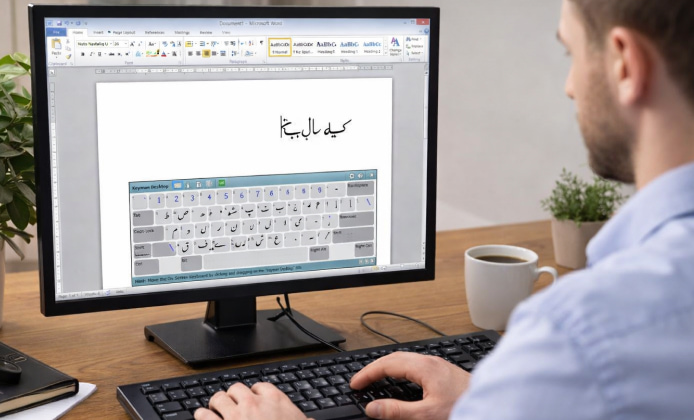
Typing in Urdu on a computer can feel effortless once the right layout is enabled and a few small settings are tuned for your workflow. This guide walks through the most reliable ways to add an Urdu input method, switch between languages quickly, and fix common issues like missing fonts or a layout that doesn’t match what you expect.
Before you begin, decide what you need most: system-level language support, a lightweight typing tool, or a phonetic layout that mirrors English key positions. A few minutes of planning saves a lot of frustration later, especially if you type both English and Urdu in the same documents.
Quick Start: Add Urdu in Windows Language Settings
In the Windows Settings app, you can install Urdu Keyboard on Windows 10 in a few taps, then confirm the layout before typing.
- Open Settings → Time & Language → Language & region.
- Select Add a language, search for Urdu, and add it.
- Open the language options and ensure an Urdu keyboard layout is installed.
- Use Win + Space (or the language icon on the taskbar) to switch layouts instantly.
Most users prefer to install Urdu Keyboard through the official language pack so updates arrive automatically.
Choose the Right Layout for Your Typing Style
Urdu input can be enabled with different keyboard layouts depending on your comfort level. Some layouts follow traditional Urdu keyboard mapping, while others may be phonetic and easier for beginners.
- Traditional Urdu layout: best if you’ve learned standard Urdu typewriter-style mapping.
- Phonetic approach: helpful if you want Urdu letters based on familiar English sounds.
- App-based keyboards: useful when you need extra features like suggestions, transliteration, or custom shortcuts.
For desktop workstations, many people install Urdu Keyboard on PC using the built-in language features because it integrates cleanly with Office apps and browsers.
Laptop Tips: Mobility, Hotkeys, and Trackpad-Friendly Switching
On portable devices, the Urdu Keyboard install on laptop experience is usually the same, but power-saving settings can sometimes pause background downloads.
To make switching faster, pin the language indicator to the taskbar and practice a single habit, like using Alt + Shift or Win + Space. If you travel often, keep offline language packs available so the layout stays ready even on slow connections.
A good test after setup is to type one short sentence in an offline app (like Notepad) and one in a browser form, because some sites handle input differently.
Download vs Built-In: What’s the Difference?
If you need advanced features, a third-party option can help, but for many users the simplest path is the system method. When you do choose a tool, make sure it is reputable, regularly updated, and compatible with your Windows version.
When you evaluate options, the safest Urdu Keyboard download and install choice is one that clearly lists its publisher, version history, and permissions.
Step-by-Step Checklist for a Clean Setup
Use this checklist to confirm everything is working the way you want:
- Switching works consistently (taskbar icon and hotkey both function).
- Urdu characters display correctly in your main apps (browser, Word processor, chat).
- Fonts render properly (no missing glyphs or boxes).
- Right-to-left behavior works in your preferred editor when needed.
After a restart, verify the Urdu Keyboard install remains available and doesn’t revert to a default layout unexpectedly.
Troubleshooting Common Issues
If you can’t see the layout, or typing produces unexpected characters, try the fixes below. Each takes less than a minute and resolves most setup problems.
| Problem | Likely Cause | Fix |
|---|---|---|
| Urdu option not showing | Language pack not fully added | Remove Urdu, reboot, add it again from Language settings |
| Letters appear as squares | Font support missing in the app | Try a Unicode-friendly font and test in another program |
| Wrong characters for keys | Incorrect layout selected | Open keyboard options and choose the intended Urdu layout |
| Switching hotkey doesn’t work | Hotkey conflict or disabled shortcut | Check advanced keyboard settings and reassign the shortcut |
When You Need an External Tool
If your workflow needs special shortcuts, transliteration, or custom dictionaries, a dedicated app may be worth it. In that case, pick a trusted Urdu Keyboard installer and review its settings for startup behavior and update controls.
Some utilities can add predictive suggestions or phonetic typing, which is helpful if you’re composing long messages. However, system-level layouts tend to be more stable across apps, especially for business documents and forms.
Cost and Access: Free Options That Still Work Well
In many cases, Windows provides language support without extra software, and that’s enough for everyday typing. If you do go beyond built-in settings, compare a few tools and choose what matches your comfort level.
For basic needs, a reliable Urdu Keyboard for free install path is to enable Urdu through Windows language features and keep the layout pinned for quick access.
Final Verification: Make It Stick
A smooth setup isn’t just about enabling the layout once; it’s about ensuring it works after updates, restarts, and across apps you use daily. Save a short test note that includes Urdu letters you frequently type, and revisit it whenever you change settings.
To avoid surprises, the best Urdu Keyboard installation habit is to confirm the selected layout inside the exact app where you’ll type the most. Once everything is ready, you can comfortably install Urdu Keyboard on Windows while keeping English available, and switch between them without breaking your typing flow.
Mini Test (Copy and Type)
Try typing a short Urdu phrase in a simple editor first, then in your browser:
- Open Notepad and type a sentence in Urdu.
- Open your favorite website’s search bar and type the same sentence.
- Switch back to English and confirm both layouts behave as expected.
If both tests work, your setup is complete and you’re ready to type Urdu confidently across Windows apps.

 Install Urdu Keyboard Guide: from Setup to Smooth Typing
 Urdu Keyboard on Laptop: Predictive Text and Emoji Support
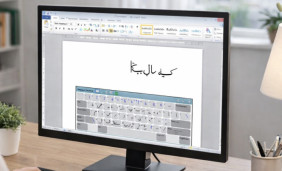 Urdu Keyboard on PC: Write, Search, and Chat in Urdu on Computer
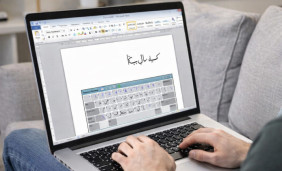 Urdu Keyboard for Free: Best Option for Daily Typing on PC and Laptop
 Top 10 of Interesting Facts About Urdu Keyboard
 The Best Tips for New Urdu Keyboard Users