
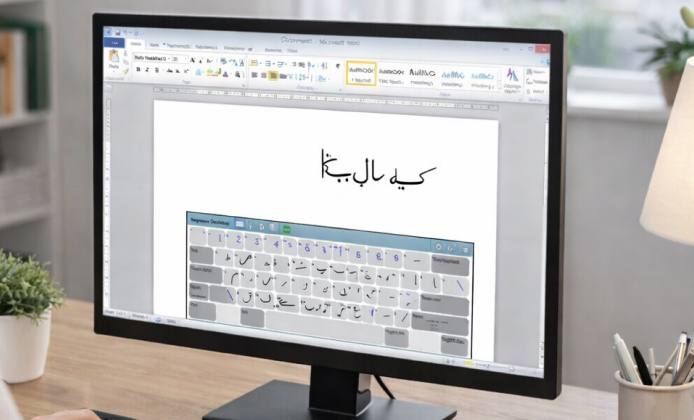
Typing in Urdu on a desktop or laptop can be simple once you pick the right layout and understand a few Windows settings. Whether you need Urdu for emails, schoolwork, captions, or customer support, Urdu Keyboard on PC can help you switch between languages quickly without changing your workflow.
Why Use an Urdu Keyboard on Computer?
On a PC, you get better precision for long-form writing, faster editing, and easier file management than on a phone. With the right setup, you can type Urdu and English in the same document, use keyboard shortcuts, and keep consistent formatting for professional use.
- Faster typing for long notes, articles, and assignments
- Better control in Word processors, spreadsheets, and email clients
- Easy switching between Urdu and English layouts
- Improved accuracy for search, data entry, and messaging
What You Need Before Setup
Most users only need an updated Windows system and a stable internet connection for the first installation. After that, offline typing is usually supported. If you want to install Urdu Keyboard on PC, plan which layout fits your habits: phonetic (letters map by sound) or a standard Urdu layout (traditional key placement).
Tip: If you already type Urdu on mobile using phonetic input, start with a phonetic layout on PC for a smoother transition.
How to Install and Enable Urdu Input on Windows
Many setups use the Windows language settings plus an input method. If you prefer a dedicated installer, choose a trusted source and verify it supports your Windows version. For users searching for Urdu Keyboard download for PC, it helps to confirm the layout type and whether it includes on-screen hints or auto-correct features.
- Open Windows Settings and go to Language & Region.
- Add Urdu to your preferred languages list.
- Select a keyboard layout and confirm it’s active.
- Use the language switch shortcut (often Win + Space) to toggle layouts.
Free Options and What to Compare
There are multiple solutions depending on your goals: system-based input, dedicated apps, or browser-based typing tools. If you need Urdu Keyboard for PC download for free, compare usability and privacy features rather than choosing the first option you see.
| Option | Best for | Pros | Things to check |
|---|---|---|---|
| Windows built-in language input | Everyday typing in apps | Stable, integrates with the OS | Layout comfort, shortcuts |
| Standalone keyboard apps | Extra features (suggestions, templates) | Helpful tools for beginners | Permissions, updates, reputation |
| Web-based Urdu typing | Occasional use | No installation required | Data privacy, copy/paste formatting |
Recommendations for Safe Downloading
If you plan to use Urdu Keyboard for PC download, stick to well-known sources and avoid installers that bundle unrelated software. Some users specifically look for Urdu Keyboard download for free for PC, but “free” should still mean clear licensing, transparent updates, and no intrusive background processes.
- Check version compatibility with your Windows edition
- Review permissions and whether it runs at startup
- Prefer tools with clear update notes and support pages
- Scan downloads with a reputable security tool
Best Practices for Everyday Urdu Typing
To type faster, learn a handful of shortcuts and keep your layout consistent across devices. Many users choose Urdu Keyboard for PC free to download when they only need core typing, but productivity often improves with a quick cheat sheet for special letters and punctuation.
- Use Win + Space to switch languages quickly
- Pin your most-used apps so input stays consistent
- Create a short document with common Urdu phrases for copy/paste
- Test typing in Word, browsers, and messaging apps to confirm behavior
Windows 10 Setup Notes
On some systems, language packs and keyboard layouts may require an additional confirmation step, especially if you manage multiple user profiles. If your goal is Urdu Keyboard on PC with Windows 10, double-check that Urdu appears in both the language list and the keyboard options, then restart the target app to refresh input settings.
Common Issues and Fixes
- Letters appear disconnected: Ensure you’re using a font that supports Urdu script.
- Switching languages doesn’t work: Confirm shortcuts are enabled in Keyboard settings.
- Typing direction feels wrong: Set Urdu as a preferred input for right-to-left behavior where supported.
- Keyboard layout feels confusing: Try a phonetic layout first and transition later if needed.
Quick Checklist Before You Start
After Urdu Keyboard for PC download for free is completed, do a short test in a few apps: type a sentence, add punctuation, and copy/paste it into another program. Once everything looks correct, save the layout and keep it as a pinned input for daily work.


 Install Urdu Keyboard Guide: from Setup to Smooth Typing
 Urdu Keyboard on Laptop: Predictive Text and Emoji Support
 Urdu Keyboard on PC: Write, Search, and Chat in Urdu on Computer
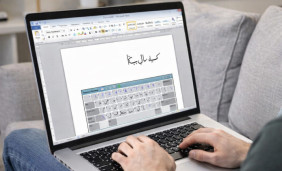 Urdu Keyboard for Free: Best Option for Daily Typing on PC and Laptop
 Top 10 of Interesting Facts About Urdu Keyboard
 The Best Tips for New Urdu Keyboard Users